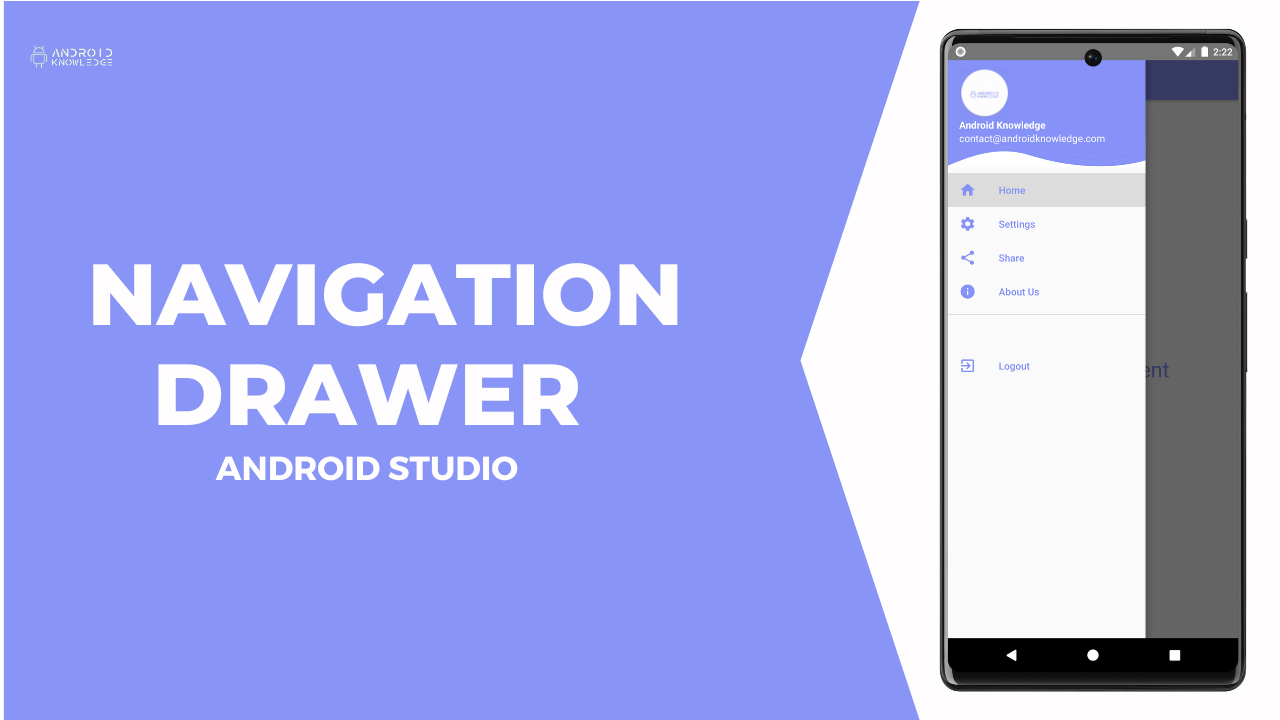
1. What Is a Navigation Drawer?
A Navigation Drawer is a panel along the side of the screen that allows users to navigate between top-level screens or destinations in an application. It is usually launched by:
A hamburger icon in the toolbar.
Swiping in from the edge of the screen.
Key Features:
You can have multiple sections within the app.
It's one of the consistent UI elements in Android design guidelines.
It can contain headers, menus, and custom views.
2. Prerequisites
Before you start to implement a navigation drawer, make sure you have:
Android Studio Installed.
Know basics of Android Layouts and Kotlin/Java.
An Existing Android project.
3. Step to Step Instructions on How to Create Navigation Drawer
Step 1: New Project
Launch the Android Studio application and open the new project.
Template will be the Navigation Drawer Activity.
Configure project and hit finish.
Step 2: Knowing the default template
In the Template, the following are:
A DrawerLayout: Which is a parent layout of the Navigation drawer.
A NavigationView: Includes the Menu items of Navigation.
A default AppBar and Toolbar.
Step 3: Edit the Layout Files
activity_main.xml:
The root layout contains a DrawerLayout with a NavigationView.

Step 4: Define the Menu Items
Create a menu resource file for the drawer:
res/menu/drawer_menu.xml:

4. Implement the Navigation Drawer Logic
Step 1: Handle Drawer Toggle in Kotlin
In your MainActivity.kt file:



No comments:
Post a Comment