Wednesday, January 1, 2025

Customizing UI with Material Design in Android


1. What Is Material Design?

Material Design is a design system based on:

Motion: It is meaningful animations that guide user interaction.

Depth: It provides shadows and elevation to enable a layered interface.

Bold, Intentional Colors: A color system approach that settles all brand-level usability questions.

It provides a set of prebuilt components such as buttons, cards, and navigation bars that adhere to these principles.

2. Getting Started with Material Design in Your Android Project

Step 1: Add Dependencies

Add Material Components to your app's build.gradle file:


Step 2: Use Material Design Theme

In your res/values/themes.xml, set your app's theme to a Material Design theme:


Material You (Material 3) supports dynamic color based on the device wallpaper, starting with Android 12.


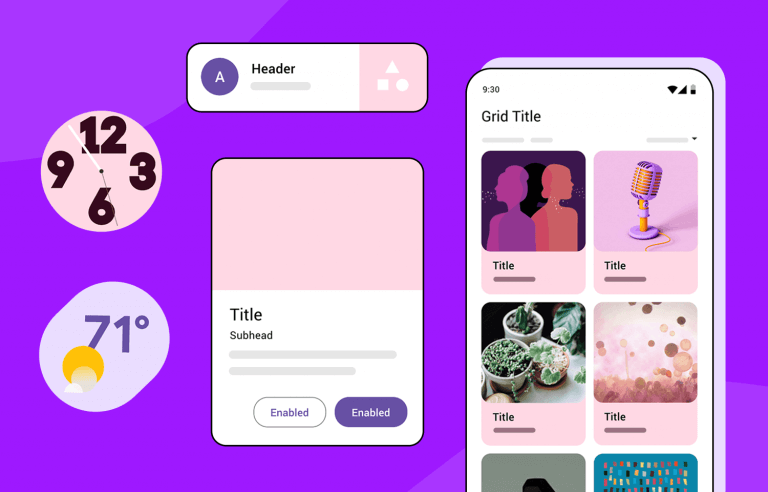
3. Core Components of Material Design a. Buttons Buttons are essential for user interaction and come in different styles. Using a Material Button:


Types of Buttons: Contained Button: Has a solid background. Outlined Button: Displays a border with a transparent background. Text Button: Only text, no background or border. b. Cards Cards are containers used to group related content.


c. Bottom Navigation Bar
The Bottom Navigation Bar helps users navigate between top-level views.


Define the menu in res/menu/bottom_nav_menu.xml:


Tuesday, December 31, 2024

Working with RecyclerView


1. What Is RecyclerView?

RecyclerView is a ViewGroup under Android Lollipop, API 21, as a part of Android Support Library that is designed with the purpose to efficiently display large sets of data by recycling the views, that reduces memory and improves performance of the application as well.


2. Key Elements of RecyclerView

a. Adapter

The adapter is a holder that acts between the data source and the recyclerView. It takes the data set and binds that data to each item's view.

b. ViewHolder

The ViewHolder is an inner static class in the adapter that holds references to the views for each data item, thereby improving scrolling performance.

c. LayoutManager

The LayoutManager determines how the items are laid out in RecyclerView. Common options are:

LinearLayoutManager: Items will be displayed as a vertical or horizontal list.

GridLayoutManager: Items will be displayed as a grid.

StaggeredGridLayoutManager: Items will be laid out in a staggered grid.


3. Setting Up RecyclerView: Step-by-Step

Step 1: Add RecyclerView to Your Layout

In your activity_main.xml file:


Monday, December 30, 2024

How to Build a Navigation Drawer in Android Apps


1. What Is a Navigation Drawer?

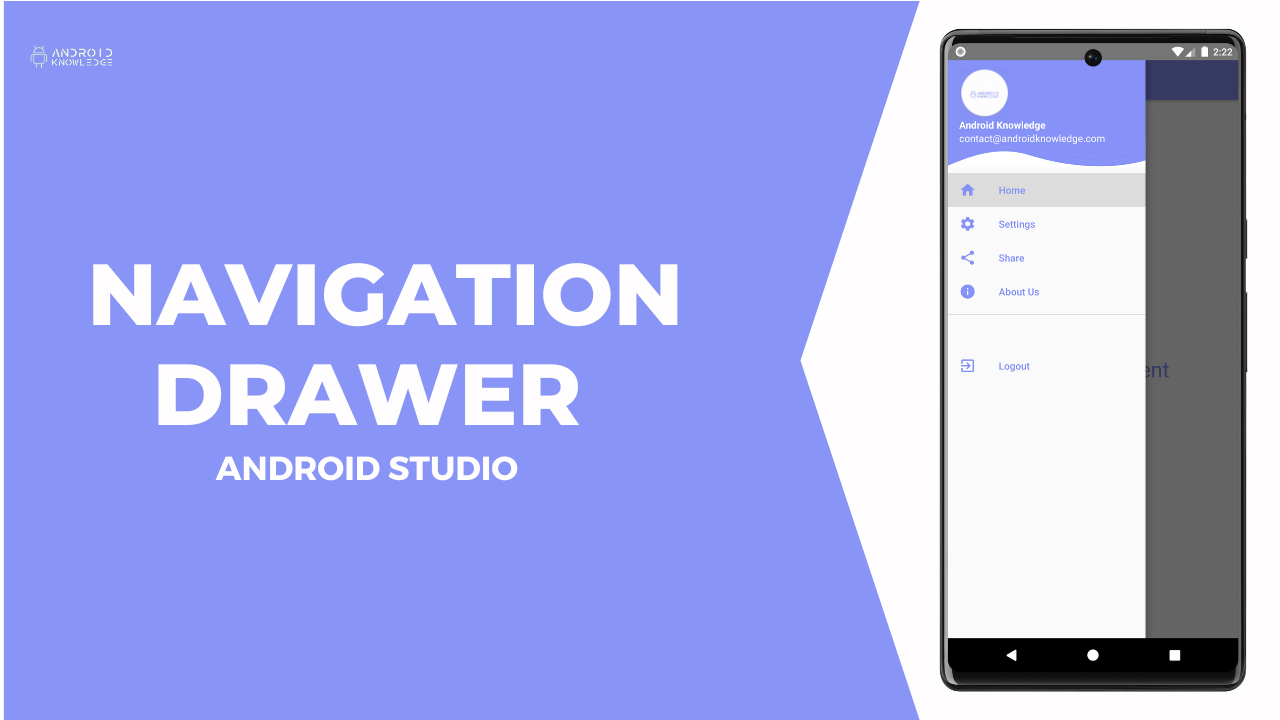
A Navigation Drawer is a panel along the side of the screen that allows users to navigate between top-level screens or destinations in an application. It is usually launched by:

A hamburger icon in the toolbar.

Swiping in from the edge of the screen.

Key Features:

You can have multiple sections within the app.

It's one of the consistent UI elements in Android design guidelines.

It can contain headers, menus, and custom views.

2. Prerequisites

Before you start to implement a navigation drawer, make sure you have:

Android Studio Installed.

Know basics of Android Layouts and Kotlin/Java.

An Existing Android project.

3. Step to Step Instructions on How to Create Navigation Drawer

Step 1: New Project

Launch the Android Studio application and open the new project.

Template will be the Navigation Drawer Activity.

Configure project and hit finish.

Step 2: Knowing the default template

In the Template, the following are:

A DrawerLayout: Which is a parent layout of the Navigation drawer.

A NavigationView: Includes the Menu items of Navigation.

A default AppBar and Toolbar.

Step 3: Edit the Layout Files

activity_main.xml:

The root layout contains a DrawerLayout with a NavigationView.


Step 4: Define the Menu Items

Create a menu resource file for the drawer:

res/menu/drawer_menu.xml:


4. Implement the Navigation Drawer Logic

Step 1: Handle Drawer Toggle in Kotlin

In your MainActivity.kt file:


"Find Out What Your Website’s Missing – Let’s Talk Today"


Friday, December 27, 2024

Exploring Android Jetpack: Key Features and Benefits


Android Jetpack is a suite of libraries, tools, and guidelines that helps developers build robust, high-quality Android applications in a more efficient way. This suite of libraries, tools, and guidelines simplifies the development process and accelerates the creation of apps working on different devices by addressing the common challenges. This blog explores the main features of Android Jetpack, the benefits it offers, and how it changes Android development.


1. What Is Android Jetpack?

Android Jetpack is a set of libraries structured into four main categories: Foundation, Architecture, Behavior, and UI. Each library is designed to be backward-compatible, customizable, and independent. This allows developers to only use what they need instead of the whole suite.


2. Key Features of Android Jetpack

a. Foundation

Core components to provide a seamless development experience.

  • AppCompat: Makes sure that modern app features are backward compatible.
  • Android KTX: Simplifies coding with concise and idiomatic Kotlin extensions.

b. Architecture

Helps manage the app's data and UI lifecycle.

  • ViewModel: Holds data even when configuration changes occur, such as screen rotations.
  • LiveData: Observes and reacts to changes in data.
  • Room: Simplifies database management and ensures compile-time safety for SQL queries.

c. Behavior

Adds functionality for modern app features.

  • Navigation: Manages app navigation using a visual map of destinations.
  • WorkManager: Handles background tasks that need guaranteed execution.
  • Paging: Loads data in chunks to improve performance.

d. UI

Improves user interface development.

  • RecyclerView: Renders lists and grids efficiently.
  • Fragment: Manages reusable UI components.
  • MotionLayout: Offers advanced motion and layout animations.

3. Advantages of Android Jetpack

a. Easier Development

Jetpack's libraries are modular and flexible, so developers can focus on the app's core features without reinventing the wheel.

Kotlin-first libraries (such as Android KTX) make development easier with concise syntax.

b. Better App Stability

Lifecycle-aware components (such as LiveData, ViewModel) minimize memory leaks and errors due to lifecycle management.

c. Increased Productivity

Tools such as Navigation Editor and WorkManager make complicated tasks easier to accomplish, saving development time.

d. Backward Compatibility

Jetpack libraries are available for older Android versions, allowing users to have a smooth experience across devices.

e. Scalable Architecture

Jetpack supports clean, maintainable code by encouraging MVVM (Model-View-ViewModel) architecture.

4. Key Jetpack Components in Action

a. Navigation

Handles navigation within an app with visual representations of screens and transitions.

Example:


b. WorkManager

Schedules background tasks with guaranteed execution.
Example in Kotlin:


c. Room

Provides a SQLite database with compile-time verification.
Example in Kotlin:


d. LiveData and ViewModel

Ensures UI components update automatically when data changes.
Example in Kotlin:

Thursday, December 26, 2024

Mastering Views and ViewGroups in Android


 Views and ViewGroups are the basic elements of Android's user interface system. Whether you are developing a simple application or a complex UI, knowing how Views and ViewGroups work is important. This blog delves into the basics, types, and best practices for working with Views and ViewGroups in Android development, allowing you to develop intuitive and efficient user interfaces.


1. What Are Views and ViewGroups?

a. Views

A View is the base class for all UI components in Android. It represents a rectangular area on the screen and does the following:

  • Draws itself.
  • Interacts with the user.

Some examples of Views include:

  • TextView: Displays text.
  • Button: Performs an action when clicked.
  • ImageView: Displays images.
  • EditText: Captures input from the user.

b. ViewGroups

A ViewGroup is a container that holds multiple Views and other ViewGroups. It acts as a parent layout that defines how its child Views are arranged. Some examples of ViewGroups include:

  • LinearLayout
  • RelativeLayout
  • ConstraintLayout


2. Understanding the View Hierarchy

Android organizes Views and ViewGroups in a hierarchical structure called the View Hierarchy.

  • Root ViewGroup: The highest ViewGroup, often set in the setContentView() method.
  • Child Views: Place inside the ViewGroup to produce a full layout.

Example Hierarchy:


Hierarchy Benefits:

  • Logical layout of UI elements.
  • Enables cascading styles and interactions.


3. Types of Views

a. Basic Views

  • TextView: Renders text.
  • ImageView: Renders images.
  • Button: Takes action on click.

b. Interactive Views

  • EditText: Captures text input.
  • CheckBox: Allows selection of multiple options.
  • RadioButton: Allows selection of one option within a group.

c. Advanced Views

  • RecyclerView: Renders large data sets efficiently.
  • WebView: Renders web content.


4. Types of ViewGroups

a. Layouts

  • LinearLayout: Arranges elements horizontally or vertically.
  • ConstraintLayout: Provides advanced alignment and positioning.
  • FrameLayout: Overlays elements one after the other.

b. Specialized ViewGroups

  • ScrollView: Scrolling view to browse over content
  • RecyclerView: display scrolling lists
  • ViewPager2: Swipe views


5. Custom Views and ViewGroups

a. Custom Views

  • Build a custom View if any of the built-in views will not fulfill your needs.

Example


b. Custom ViewGroups

Combine multiple Views into a reusable component.
Example:


7. Event Handling in Views

a. OnClickListener

Attach click listeners to Views.

Example:


b. Gesture Handling

Use GestureDetector for advanced touch interactions.

Example:


7. Best Practices for Views and ViewGroups

  1. Optimize Layouts: Minimize nesting of ViewGroups to gain performance. Utilize ConstraintLayout
  2. Reuse Views: Use RecyclerView for lists and grids to reduce memory usage.
  3. Use Tools Attributes: Include design-time attributes, like tools:text for better preview without affecting runtime.
  4. Test Across Devices: Ensure that your layouts work with different screen sizes and orientations.
  5. Avoid Overdraw: Use tools like Layout Inspector to detect and minimize overdraw.

8. Debugging Views and ViewGroups
  • Hierarchy Viewer: Visualize and debug your View hierarchy.
  • Layout Inspector: Analyze layouts in real time.
  • Profile Rendering: Identify performance bottlenecks caused by heavy Views.

9. When to Use Views vs. ViewGroups
  • Views: Use when you need a single, standalone UI element like a Button or TextView.
  • ViewGroups: Use when you need to organize multiple Views into a cohesive layout.


Wednesday, December 25, 2024

What Are Layouts in Android Development?


1. What Are Layouts?

A layout in Android describes the structure of the UI. It tells how to arrange the UI components on the screen. Layouts are defined by using the following:

  • XML Files: Declarative and easily visualized.
  • Java/Kotlin Code: For dynamic and programmatically generated UIs.

Every layout has a purpose, and you can design your app's interface according to its functionality and design requirement.

2. Types of Layouts in Android

Android provides a number of layout types to suit different design requirements:

a. LinearLayout

Arrange elements in one direction: horizontal or vertical.

  • Orientation: Specified by the android:orientation attribute, either horizontal or vertical.
  • Advantages: Easy to use, suitable for linear arrangements.
  • Disadvantages: Nested LinearLayouts decrease performance.


Example:


b. RelativeLayout

Allows you to set elements relative to each other or the parent container.

  • Attributes: Use android:layout_above, android:layout_below, android:layout_toLeftOf, etc.
  • Advantages: Versatile positioning.
  • Drawbacks: More complicated than LinearLayout.
Example:


c. ConstraintLayout

The most advanced and flexible layout, where you can define constraints between elements and the parent container.
  • Attributes: Use app:layout_constraintStart_toStartOf, app:layout_constraintEnd_toEndOf, etc.
  • Pros: Reduces nesting, improves performance.
  • Cons: Steeper learning curve.
Example:


d. FrameLayout
A basic layout that stacks elements on top of each other.

  • Use Case: Suitable for displaying a single view or layering elements.
  • Pros: Lightweight.
  • Cons: Less flexible.
Example:


e. TableLayout

Arranges elements in rows and columns, similar to a table.
  • Use Case: Good for tabular data.
  • Pros: Easy to make table-like UIs.
  • Cons: Difficult to keep up.
Example:


3. Layout Attributes
Common attributes to all layouts:
  • android:layout_width: Sets an element's width (wrap_content, match_parent, or specific measurements).
  • android:layout_height: Sets an element's height.
  • android:padding and android:margin: Establish inner and outer spacing of an element.
  • android:gravity: Places content inside a view.
  • android:layout_gravity: Places the view inside its parent.

4. Best Practices for Using Layouts

  1. Choose the Right Layout: Use the most appropriate layout for your design. For instance, prefer ConstraintLayout for complex designs and LinearLayout for simple, linear arrangements.
  2. Minimize Nesting: Avoid deeply nested layouts to improve performance. ConstraintLayout is ideal for reducing nesting.
  3. Use Tools for Visualization: Use the Android Studio Layout Editor to preview and adjust your layouts visually.
  4. Test Across Devices: Make sure that your layouts are responsive, supporting various screen sizes and orientations, using responsive design principles.
  5. Use Style and Theme: Use styles and themes to avoid redundancy and consistency in your layouts.

5. Dynamic Layouts in Code
Although XML is the preferred way to declare layouts, you can generate layouts programmatically in Java/Kotlin.

Kotlin Example:


6. Layout Optimization Techniques

  • Use ViewStubs: For views that are not always visible, use ViewStubs to save memory and improve performance.
  • Include Layouts: Reuse layout components with the <include> tag.
  • Use Tools Attributes: Use tools: attributes for design-time hints without affecting runtime performance.


Tuesday, December 24, 2024

Debugging Android Apps: Essential Tips for Beginners


Debugging is a critical skill for Android developers. Whether you're dealing with a crash, unexpected behavior, or a performance bottleneck, effective debugging can save you hours of frustration and improve your app’s quality. In this blog, we’ll explore essential debugging tips and tools for beginners to help you identify and resolve issues in your Android applications.


1. Understanding the Debugging Process

Before diving into tools and techniques, it’s important to understand the basics of debugging:


Identify the Issue: What is the problem? Is the app crashing, running slowly, or not behaving as expected?

Reproduce the Bug: Consistently recreating the issue is key to diagnosing it.

Analyze and Investigate: Use tools and logs to pinpoint the cause.

Fix and Test: Apply the fix and verify the problem is resolved without introducing new issues.

2. Using Logcat Effectively

Logcat is an essential tool in Android Studio for debugging. It displays real-time system logs and error messages from your app.


Filter Logs: Use tags like TAG in your code to filter relevant logs.


kotlin

Copy code

Log.d("TAG", "This is a debug message")

Log Levels:


Log.v: Verbose (least important).

Log.d: Debug (used for debugging messages).

Log.i: Info (general information).

Log.w: Warning (potential issues).

Log.e: Error (critical issues).

Search Logs: Use the search bar in Logcat to find specific messages.


Tip: Avoid leaving unnecessary logs in production code, as they can clutter logs and affect performance.


3. Setting Breakpoints in Android Studio

Breakpoints allow you to pause the execution of your app at specific lines of code to inspect variables and behavior.


How to Add a Breakpoint: Click in the margin next to the line of code where you want to pause execution.

Run in Debug Mode: Click the Debug button (bug icon) instead of the Run button.

Inspect Variables: Hover over variables or view them in the Variables panel to see their values at runtime.

Step Through Code:

Step Over: Execute the current line and move to the next.

Step Into: Dive into methods or functions.

Step Out: Exit the current method.

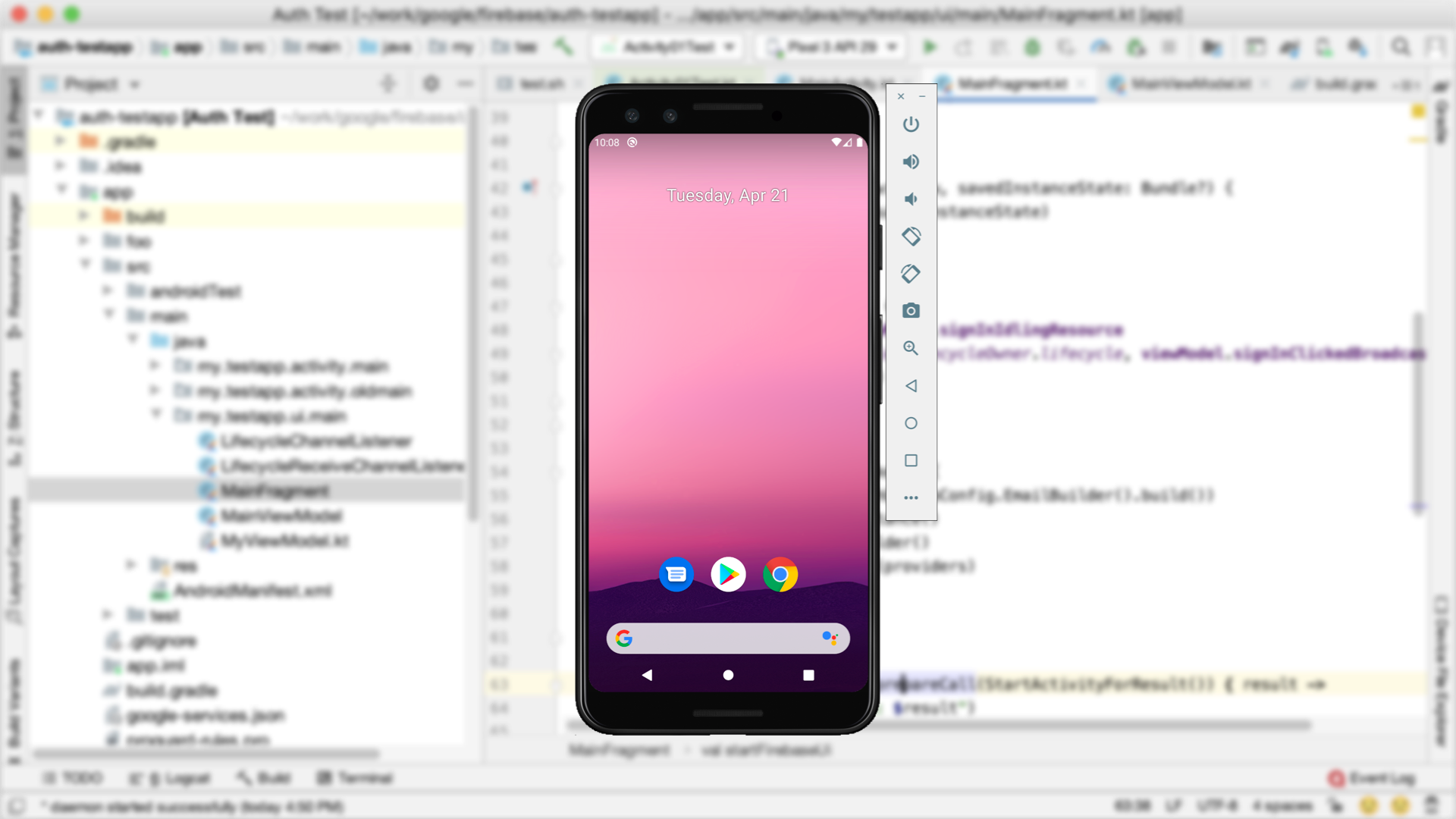
4. Using the Android Emulator for Debugging

The Android Emulator is equipped with debugging tools:


Simulate Real-World Scenarios: Test different network conditions, battery levels, and location data.

Capture Bug Reports: Use the bug report option in the emulator to gather detailed information about issues.

Crash Logs: Check Logcat for error messages when your app crashes on the emulator.

5. Analyzing Crash Logs

When your app crashes, the stack trace provides valuable information about the cause. Look for:


Exception Type: For example, NullPointerException, IndexOutOfBoundsException.

Line Number: The exact line of code where the crash occurred.

Stack Trace: Follow the trace to understand the chain of method calls leading to the crash.

Example Stack Trace:


csharp

Copy code

java.lang.NullPointerException: Attempt to invoke virtual method 'int java.lang.String.length()' on a null object reference

    at com.example.myapp.MainActivity.onCreate(MainActivity.java:42)

From this trace, you can see that the error occurred in MainActivity.java at line 42.


6. Testing Edge Cases

Many bugs occur in edge cases. Test your app with:


Empty Inputs: Check how your app behaves with no data or empty strings.

Extreme Inputs: Use very large numbers or long strings.

Unexpected User Actions: Test multiple clicks, back button behavior, and multitasking.

7. Memory and Performance Debugging

Poor memory management or performance issues can cause crashes and a bad user experience. Use the following tools:


Memory Profiler: Identify memory leaks and monitor memory usage.

CPU Profiler: Analyze CPU activity to spot performance bottlenecks.

Network Profiler: Check for slow or excessive network requests.

These tools are available in the Profiler tab of Android Studio.


8. Common Issues and How to Fix Them

NullPointerException:


Cause: Accessing a null object reference.

Fix: Always check for null before using objects.

kotlin

Copy code

myObject?.let {

    // Safe to use

}

App Not Responding (ANR):


Cause: Long operations on the main thread.

Fix: Use background threads or AsyncTask for heavy tasks.

kotlin

Copy code

CoroutineScope(Dispatchers.IO).launch {

    // Background work

}

UI Layout Issues:


Cause: Incorrect layout constraints or hardcoded dimensions.

Fix: Use ConstraintLayout or test on multiple screen sizes.

9. Debugging Network Calls

If your app interacts with APIs, you may encounter network-related bugs. Tools like Retrofit, combined with a logging interceptor, can help you debug network calls:


kotlin

Copy code

val logging = HttpLoggingInterceptor()

logging.setLevel(HttpLoggingInterceptor.Level.BODY)

val client = OkHttpClient.Builder()

    .addInterceptor(logging)

    .build()

Use the Network Profiler in Android Studio to monitor requests and responses.


10. Leveraging Third-Party Debugging Tools

Stetho: A debug bridge for Android apps that integrates with Chrome Developer Tools.

LeakCanary: Detects memory leaks in your app.

Firebase Crashlytics: Monitors and reports crashes in real-time.

11. Writing Test Cases for Debugging

Testing is a proactive way to catch bugs early. Use:


Unit Tests: Write tests for individual functions using JUnit.

UI Tests: Test user interactions with Espresso.

Example Unit Test:


kotlin

Copy code

@Test

fun addition_isCorrect() {

    assertEquals(4, 2 + 2)

}

12. Debugging on a Physical Device

While the emulator is convenient, testing on a real device is crucial for identifying hardware-specific issues:


Connect your device via USB and enable Developer Options.

Use Android Studio’s Run or Debug tools to test on the device.

Conclusion

Debugging Android apps can be challenging, but with the right tools and techniques, you can quickly identify and fix issues. From Logcat and breakpoints to advanced profilers and network debugging tools, Android Studio provides everything you need to build reliable and high-quality applications. Start implementing these tips today and elevate your debugging skills to the next level.
Monday, December 23, 2024

How to Use the Android Emulator for Testing Apps


The Android Emulator is a powerful tool for testing Android applications without needing a physical device. It simulates a real Android environment on your computer, allowing you to test your app on various devices, screen sizes, and Android versions. In this guide, we'll walk you through how to set up and use the Android Emulator to test your apps efficiently.


Step 1: What Is the Android Emulator?

The Android Emulator is an integral part of the Android Studio development environment. It allows you to simulate Android devices on your computer, complete with hardware and software configurations. Using the emulator, you can:


Test apps on different Android versions.

Emulate devices with various screen sizes and resolutions.

Debug apps and identify issues before deploying to a physical device.

Step 2: Setting Up the Android Emulator

Install Android Studio:

If you haven't installed Android Studio yet, download it from official resources and go through with installation instructions.


Open the AVD Manager:


Click the AVD Manager - the Android Virtual Device Manager on the right top-hand side or under Tools on top > Device Manager.

Develop New Virtual Device


In your AVD Manager, choose New Virtual Device.

Choose a hardware profile to match the device type you want to emulate. The options are a Pixel phone or a tablet.

Tap Next

Select System Image:


Select an Android version (API level) and download the corresponding system image if it is not installed

Tap Next

Configure Emulator:


Set the orientation, scale, and RAM size for your virtual device. Leave most of the settings set to their default values

Tap Finish to create the virtual device.

Start the Emulator:


In the AVD Manager, click the green Play button next to the virtual device to start the emulator.

Step 3: Running Your App on the Emulator

Build and Run Your App:


Open your Android project in Android Studio.

Click on the green Run button (or press Shift + F10).

Choose the emulator from the list of available devices.

The app will compile and install on the emulator.

Interacting with the Emulator:


Use your mouse and keyboard to interact with the emulator as you would on a touchscreen device.

Test all UI components, navigation, and functionality.

Step 4: Using Emulator Features for Testing

The Android Emulator comes with several built-in features that will help you test your app thoroughly:

Rotating the Screen:

Test how your app behaves in both portrait and landscape orientations.

Click the Rotate Screen button in the emulator toolbar.

Simulating Different Network Conditions:

Test your app's behavior under different network conditions.


Extended Controls (three-dot menu in the toolbar)

Cellular Tab

Select network conditions, such as Edge, 3G, or LTE.

Simulating Location Data:

If your app relies on location services, you can offer mock GPS coordinates.


Open the Extended Controls

Location Tab

Enter latitude and longitude values

Testing with Multiple Devices:

You can create multiple virtual devices in the AVD Manager to test your app on different screen sizes, resolutions, and Android versions.


Debugging:

Use Android Studio's Logcat tool to view logs and debug issues while your app is running on the emulator.


Step 5: Tips for Efficient Testing on the Emulator

Allocate More RAM:

If your computer has enough resources, allocate more RAM to the emulator for better performance. Adjust this in the AVD Manager settings for your virtual device.


Use Snapshots:

Enable snapshots in the AVD configuration to save the emulator's state. This speeds up startup by resuming from the saved state instead of a cold boot.


Install APKs Directly:

If you have an APK file, you can drag and drop it on the emulator window to install it right away.

Use Keyboard Shortcuts:

Familiarize yourself with emulator keyboard shortcuts to save time:


Ctrl + F11: Rotate screen.

Ctrl + Shift + F: Toggle fullscreen mode.

Test on Older Android Versions:

Make sure that your app is backward compatible by testing it on older Android versions that your app supports.


Step 6: Advantages of Using the Emulator

No Need for Physical Devices:

You can test on various device types and configurations without needing to own multiple physical devices using the emulator.


Quick Iterations:

You can quickly make changes in your app and test them immediately on the emulator.


Simulated Scenarios:

The emulator lets you simulate scenarios like low battery, network disruptions, and system crashes that are hard to test on physical devices.


Flexible Configuration:

You can build specific devices with particular screen sizes, resolutions, and hardware profiles.


Step 7: When to Use Physical Devices Instead

Even though the emulator is an extremely strong tool, there are cases where a physical device might be required:


Performance Testing: The emulator does not really show real-world performance.

Hardware-Specific Features: Camera, fingerprint scanner, gyroscopes, etc., should be tested on actual devices.

Battery Consumption: The emulator doesn't simulate real battery usage accurately.

Physical devices really tell in real-life ways the experience of an application while on a user's hand.


"Find Out What Your Website’s Missing – Let’s Talk Today"

Friday, December 20, 2024

Your First Android App: A Beginner’s Guide


Step 1: Setting Up Your Development Environment

Before you start coding, you have to install Android Studio-the official IDE for Android development.


Download and Install Android Studio:


Visit the Android Studio website and download the installer for your operating system (Windows, macOS, or Linux).

Follow the instructions on the website.

Install SDKs and Tools:


Android Studio is offered with the Android SDK that contains all the necessary tools. This should be installed with the required virtual device for testing your apps.

Step 2: Create a New Project

Let's now create your very first app using Android Studio.


Open Android Studio :


Once you have installed it on your computer, open it and click on Start a new Android Studio project.

Configuration of Your Project:


Name Your App: For this tutorial, let’s call it MyFirstApp.

Choose a Project Template: Android Studio offers several templates for different types of apps. Select Empty Activity to keep it simple.

Set Language: Choose either Java or Kotlin as the programming language. For this tutorial, we’ll use Kotlin (the recommended language for Android development).

Select API Level: Pick the lowest API level that covers most Android devices. An API level of 21 is a good place to start.

Click Finish:

After filling in the configuration details, click Finish to create your project. Android Studio will now set up the project files and folders.


Step 3: Understand the Project Structure

Android Studio will generate a basic project with a few important files:


MainActivity.kt: This is the place where the app logic (Java/Kotlin code) will be. MainActivity is the entry point for your app.

activity_main.xml: This is a layout file where you can define the UI (buttons, text fields, etc.) using XML.

Step 4: Design the User Interface (UI)

Now let's design a simple UI for your app. We are going to create a TextView and use it to display a message, and a Button to change the message when clicked.


Open the activity_main.xml file: Navigate to res > layout > activity_main.xml. You’ll see a default XML layout with a ConstraintLayout.


Modify the layout: Replace the default XML code with the following code to add a TextView and a Button:


In this layout,

A TextView is used to present the message.

A Button lets a user change the text displayed upon clicking.

Preview the Layout:

You can preview the layout in the Design tab of Android Studio. It will display how your app's UI will look on a device.


Step 5: Add App Logic in MainActivity

Now, let's add functionality to the button. When the user clicks the button, the text in the TextView must change.


Open MainActivity.kt: In the src > main > java > com.example.myfirstapp > MainActivity.kt file, you will find the basic Kotlin code for your app.


Modify the MainActivity code: Replace the existing code with the following to implement the button functionality:


In this code;


findViewById gets references to both the TextView and Button,

setOnClicklistener is used, which will change the TextView text whenever the button gets clicked,

Step 6: Running Your App on an Emulator or a Device

Setting Up An Emulator:

If you do not have an actual Android device, you can use the Android Emulator. In Android Studio, open the AVD Manager (Android Virtual Device) and create a new virtual device to simulate an Android phone.


Run Your App:


Click the green Run button in Android Studio.

Choose your device or emulator.

Your app should now launch, showing the text "Hello, Android!" and the "Change Text" button.

Test Your App:

Click the Change Text button. The text should change to “You clicked the button!”


Thursday, December 19, 2024

What Is an Activity in Android, and Why Is It Important?


What Is an Activity in Android?

An Activity in Android is essentially a single screen that a user interacts with in an app. It represents one "thing" the user can do, such as viewing a list of items, composing a message, or displaying a photo. Every app in Android consists of one or more activities, and each activity is tied to a user interface (UI) that allows the user to interact with the app.

When you start an application, you usually begin in the MainActivity, which is the default entry point of the application. From there, you can navigate to different activities depending on the flow of the application.


How Does an Activity Work?

  • UI Component: Each activity is a container for UI elements that the user can interact with, such as buttons, text views, and images.
  • Activity Lifecycle: Every activity has a lifecycle that determines how the activity is created, paused, resumed, and destroyed. It means that knowing the lifecycle is quite important to ensure smooth transitions and memory management in your application.
  • Intent: To start a new activity or navigate between them, Android uses Intents. A message object is actually the intent that allows communication between the various components of an app including activities.

Why Are Activities Important in Android?

1. User Interaction and Navigation:

Activities represent the interactive screens of your app. Without activities, there would be no way for users to interact with the app or navigate between different sections. For example, one activity could display a login screen, and another could show a user’s profile. Activities make it easy to organize your app into logical, user-friendly screens.


2. Managing the UI and Business Logic:

Apart from UI, activities also manage the business logic related to those screens. For example, if a user clicks a button, an activity decides what happens next. That is all handled in the code of the activity itself, so it is quite important to the functionality of the application.


3. Resource Management:

The activities will be responsible for managing the app's resources, including memory and data. Handling the activity lifecycle appropriately allows developers to ensure that their apps run efficiently and don't waste unnecessary resources.


4.  the Back Stack:

The activity stack, also called the back stack, allows to navigate back into previously opened screens by using the back button. Activities get pushed and popped from this stack depending on how far the user navigates through the application. Managing the back stack accordingly is really important for getting a smooth and predictable experience.


5. Handling Configuration Changes:

Android devices are available in various screen sizes, orientations, and resolutions. Activities handle all these changes properly. If the device is rotated or if the app goes to the background, the activity makes sure that the app restores its state (e.g., user input or data).


6. Understanding the Activity Lifecycle

The Activity Lifecycle is a very important concept for developers when working with activities. It can be defined as the various states in which an activity exists from its time of creation. This state includes creation, running, paused, resumed, and destroyed.


Here are the most important lifecycle methods:


  • onCreate(): Called when the activity is first created. This is where you initialize your app's resources (like setting the layout and binding UI elements).
  • onStart(): Called when the activity is about to be visible to the user.
  • onResume(): Called when activity will start interacting with the user. The application is now visible on screen.
  • onPause(): Called when activity has become partially or fully obscured by another activity or app or something else and it cannot be interacted with unless that other window remains open.
  • onStop(): Called when activity is no longer visible to the user.
  • onDestroy(): Called when activity is in the process of being terminated.

Knowing these lifecycle methods is important for dealing with UI updates, saving data, and making sure the app works well through all stages.


Common Examples of Activities

MainActivity:

  • All Android apps have a MainActivity that serves as the entry point of the app. It's the first screen users view when opening the app. In most cases, the MainActivity serves as a "launcher" screen, leading to other activities within the app.


LoginActivity:

  • An activity that deals with the login interface. It usually has fields where the user can input his credentials and buttons to submit the information.


SettingsActivity:

  • A settings screen where the user can configure app preferences, like enabling/disabling notifications or changing the theme.


DetailActivity:

  • A screen that shows more information. For example, if the app is a news reader, DetailActivity might show a full article after a user taps on a headline in the list view.

Starting and Navigating Between Activities

Activities in Android are connected using Intents. An Intent is an object that provides a runtime binding between different app components, like activities. You can use intents to start new activities and pass data between them.

Here’s an example of how to start a new activity from MainActivity:


In this example, SecondActivity is launched when MainActivity triggers the intent.

If you need to pass data between activities, you can add extra information to the intent:


"Find Out What Your Website’s Missing – Let’s Talk Today"

Customizing UI with Material Design in Android

  1. What Is Material Design? Material Design is a design system based on: Motion: It is meaningful animations that guide user interaction. ...